Field notes · Verified September 8, 2026
Big Walk Tips and Tricks
Current official settings and post-release field notes for keeping the group together without erasing the discovery that makes Big Walk work.
Best first tip
Protect the shared experience
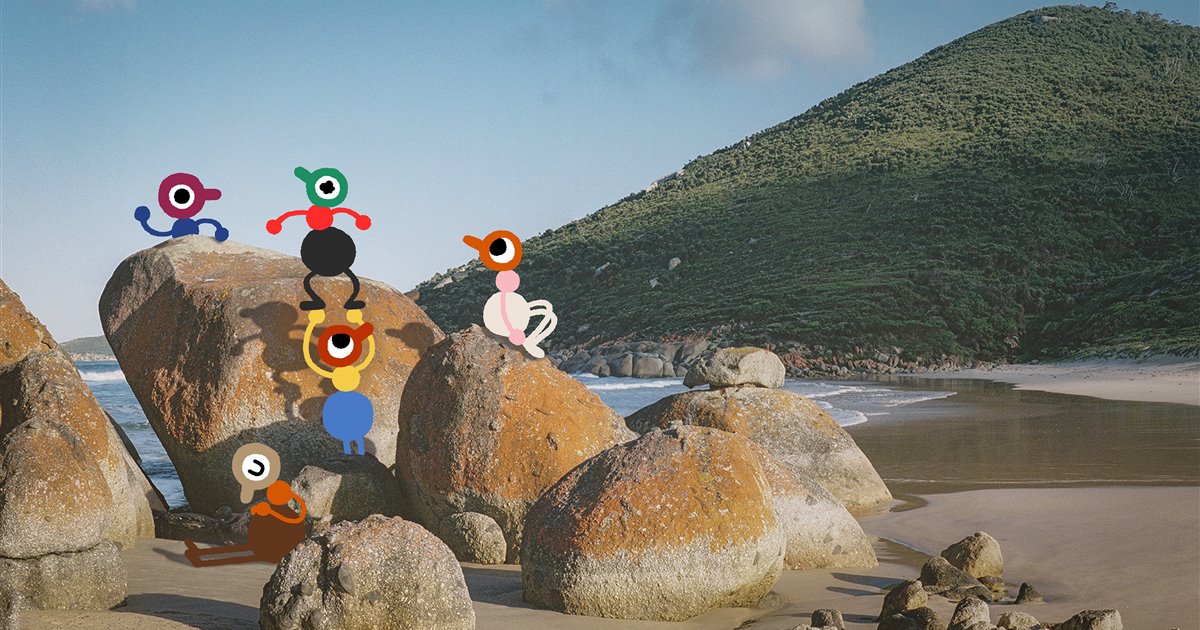
Pick a host who can return, keep communication inside the game, and resist looking up every solution immediately. Big Walk is built around groups inventing a language and recognizing how its world works together.
Plan around the group that will actually return
The host owns the save. If that player is unavailable, the rest of the group cannot continue that shared journey from the same point. Choose the most reliable person, then let them select the world version for the minimum number expected to stay: two, three or four-plus.
- Two players: the official FAQ describes this as a focused co-op experience.
- Three players: use the dedicated three-player world setting.
- Four to twelve: the world uses its four-plus configuration; additional players increase the social chaos.
- Irregular attendance: choose a lower setting rather than building the session around someone who may leave early.
Community reviewers disagree on the ideal group size, so there is no evidence-based universal answer. The developer explicitly says no particular number in the supported range is required.
Create a small communication toolkit
Proximity chat is a mechanic, not just a convenience. Before the first long separation, agree on a few gestures: pointing for a direction, one raised arm for “wait,” repeated waving for “come here,” and a simple way to signal success. The exact vocabulary is yours; consistency matters more than complexity.
Use text when needed
The built-in text system can carry the whole game and follows the same distance and obstacle rules as voice.
Keep a walkie-talkie plan
Decide who carries communication tools when the group splits so key information does not stay with one isolated person.
Describe, then confirm
For symbol or sequence tasks, one player describes while the other repeats the instruction before acting.
External chat removes distance, muffling and silence from the problem space. House House says the game will continue to run if you use it, but important situations may stop making sense.
Explore with a return point
Post-release community guides describe a fixed opening around the Beach Crosswalk, followed by a more open tower network. After that opening gate, nearby puzzles are not permanently tied to a single tower. A guide author who completed the main route reports that groups can solve available puzzles and apply the resulting progress pieces to the route they choose.
- Name the landmark before splitting. Use a building color, tower color, path feature or unusual object everybody can recognize.
- Send pairs when possible. Many interactions require cooperation, and the game does not support meaningful solo progression.
- Bring discoveries back. If one pair finds a mechanism, describe its shape and location before the whole group relocates.
- Look for navigation tools. Post-release community reports document a map and compass as discoverable items; this guide does not publish their exact location to preserve discovery.
- Use the walkthrough only at a real block. Its route names the progression gates first, then reveals the opening puzzle overview.
Use the accessibility controls early
The official FAQ lists full control rebinding, alternate crosshair styles, hold/toggle choices, field-of-view adjustment, motion-reduction overlays and challenge skipping. Some game items can highlight interactive objects, and players can carry one another when necessary.
For motion discomfort, try a Motion Reduction Overlay under Settings > General, then adjust FOV under Settings > Graphics. Change one setting at a time so you can tell what helps.
On Mac, the official FAQ documents extra steps for some Xbox wireless controllers used through Steam: prefer Bluetooth, enable the macOS controller compatibility profile, grant Steam Accessibility and Input Monitoring permissions, and enable Steam Input.
Fix slow PC performance in the official order
- Open Settings > Graphics and lower Render Scale to reduce GPU load.
- Lower the overall Quality setting to reduce CPU and GPU load.
- Raise Render Scale gradually until the image is clear enough without bringing the slowdown back.
If every player sees jitter, check the host first. The official troubleshooting page says poor host networking or a low host frame rate can affect the group. Stop other network-heavy activity, move closer to Wi-Fi or use Ethernet. If joining fails entirely, confirm that the device clock is accurate and restart the game before changing the host.